
Company management for Philippine HR teams.
PRIMIS helps Philippine HR administrators maintain departments, positions, locations, user access, and the approval rules used across workforce workflows.
Example monthly time savings
500-employee example: assumed minutes saved across the company on 300 structure lookups, 180 position-capacity checks, 240 access reviews, and 600 approval-routing checks per month.
- Structure lookups
- 20 hrsper month4 min saved × 300 lookups
- Position capacity
- 15 hrsper month5 min saved × 180 checks
- Access reviews
- 20 hrsper month5 min saved × 240 reviews
- Approval routing
- 30 hrsper month3 min saved × 600 checks
Put the structure in view. Make responsibilities clear.
A department assignment, a role permission, and a portal grant answer different questions. Review organization and access responsibilities separately so each employee has the appropriate context and controls.

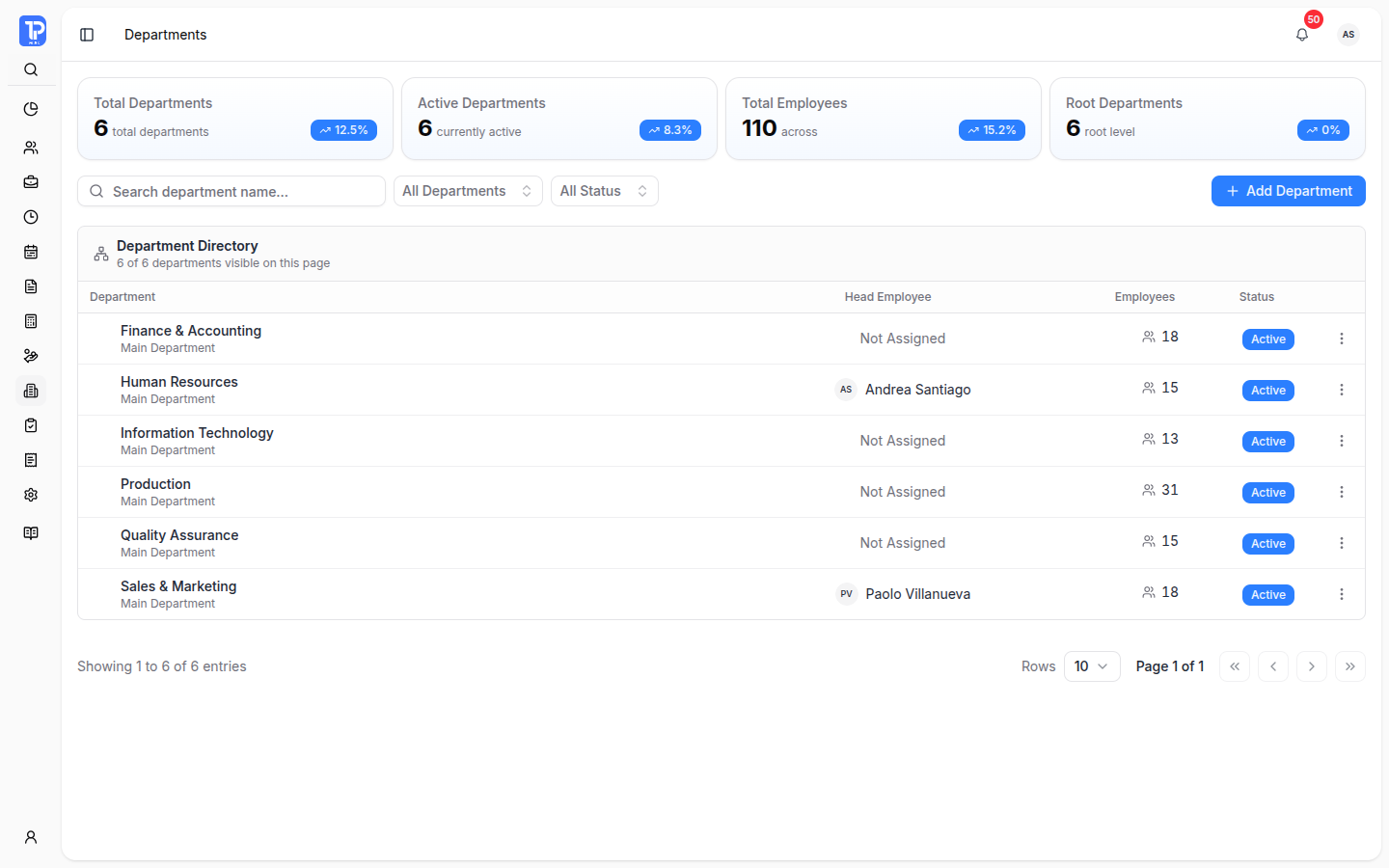
Define the structure. Give every employee context.
Departments, positions, and work locations give employee records their organizational context. Maintain the hierarchy, department heads, and role capacity where HR can review them.
-
Departments and their heads
Create departments and sub-departments. Review their head employee, employee count, location, and cost-center details.
-
Positions and capacity
Define the department, job level, reporting position, and headcount limit. Review the current headcount before changing position capacity.
-
Work locations
Maintain operating locations and their wage-region and coverage information. Location-specific rates depend on the configured coverage and effective date.
Decide who can enter. Define what they can do.
A user account, a role, and portal access serve different purposes. Review each part of access rather than assuming an employee record grants entry to every workspace.
- User accounts
- Create or maintain accounts, link employees where appropriate, and review account status and sign-in information.
- Roles and permissions
- Assign the role that defines available actions. Review its permission configuration and assigned users.
- Portal access
- Company Administrators review and manage separate Company HRIS, Billing, and Employee Self-Service access, subject to their permissions.
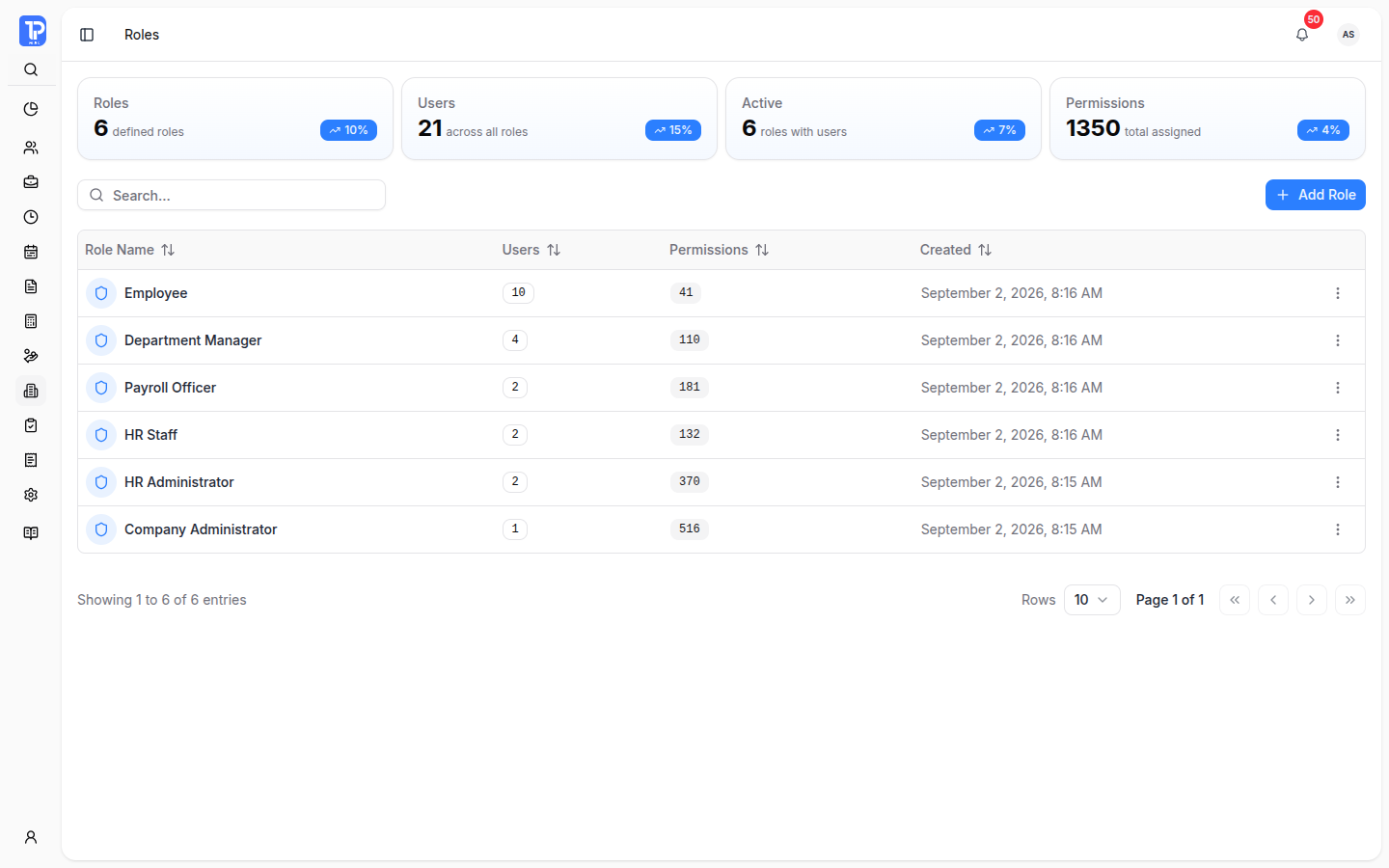
Portal grants do not replace role permissions, an active account, or module entitlement. The Portal Access page distinguishes a saved grant from access the user can currently use.
Route new requests. Resolve open requests separately.
Set the route for new requests, then review issues affecting requests already in progress. The Approval workspace separates Templates, Department Rules, Approval Issues, and SLA.
A department approval rule
- Approval mode
- Requires approval
- Flow
- Sequential
The rule inherits the selected base template’s steps and watchers for new requests.
-
Templates and department rules
Configure sequential or parallel routes, approvers, watchers, and step timing. A department can use a base template, customize its route, or use an explicit no-approval rule.
-
Unavailable approvers and blocked requests
Review unavailable approvers and invalid routes. Updating a future routing rule does not reassign an existing request; administrators use the separate blocked-request actions.
-
Approval timing
Review due and overdue steps and send advisories where authorized. SLA information helps teams follow up; it does not guarantee a decision time.
Shared company details. Ready for the work around them.
Keep identity, communication, attendance sources, calendars, and dashboard setup available alongside your organization and access controls.
- Company profile
- Maintain company and withholding-agent identity. Local BIR readiness checks review saved fields and formatting; they do not confirm official registration.
- Broadcasts
- Send company-wide or department-targeted messages and review their audience, priority, category, and history.
- Biometrics
- Manage configured devices, map device user IDs to employees, and review unresolved logs. Compatibility and recovery depend on the integration and permissions.
- Holidays and yearly schedules
- Manage holiday dates, recurrence, location scope, and company-specific moves. Preview yearly generation and inspect its history; generated rows preserve manual schedule entries.
- Dashboard layouts
- Maintain named layouts and department overrides so the dashboard reflects the relevant work.
Questions about company management
A closer look at portal access, approval changes, company identity, and yearly holidays.
No. A user account, role permissions, and portal grants are separate. Company Administrators manage Company HRIS, Billing, and Employee Self-Service access where authorized. A saved grant still depends on account status, role permissions, and module entitlement.
Updating templates or department rules changes routing for future requests. Existing blocked approval runs require separate authorized actions, such as replacing an unavailable approver or cancelling the run.
No. Local BIR readiness checks review saved company and withholding-agent fields and formatting. They do not confirm BIR registration or replace official validation.
Yearly generation preserves manual schedule entries. Authorized users can preview the proposed additions, generated-row updates, and skipped manual entries, then review the generation history. Holiday effects depend on the saved dates, active state, and location scope.
Give every workforce workflow the right company structure.
Discuss departments, positions, locations, reporting relationships, payroll groups, and access governance with PRIMIS.