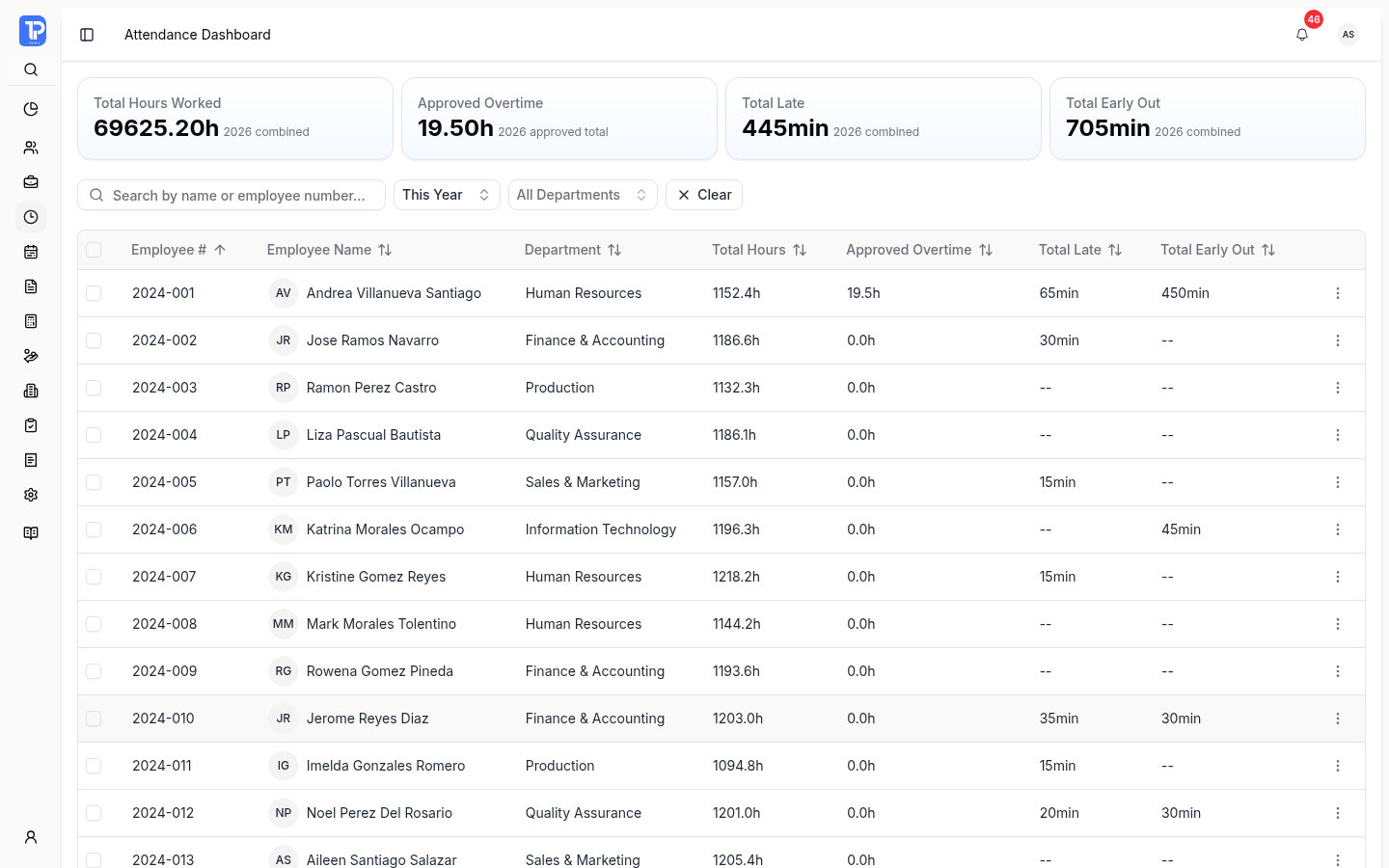
See the day clearly. Review the exceptions.
A late arrival, a missed clock event, and an overtime request call for different checks. PRIMIS brings schedules and recorded time into view so HR can follow exceptions before payroll processing.

Review the time. See what needs attention.
Hours worked, approved overtime, late arrivals, and early departures give HR a starting point. Open an employee’s attendance details to check the dates, schedules, clock records, and breaks behind those totals.
-
Find the employee and period
Search by name or employee number and filter by department. Review the monthly or yearly dashboard, then open the employee’s time-record history.
-
Check the record in context
See the schedule, time in and out, status, remarks, and recorded breaks behind an employee’s totals.
-
Keep time classifications visible
Attendance details distinguish regular hours, approved overtime, and night differential before those records inform payroll.
Available employees and editing actions follow the viewer’s permissions and department scope.
Time records have context. Requests have a decision.
A changed clock record, a recorded break, and requested overtime need different details. PRIMIS keeps these requests in separate queues with their approval progress.
Daily time recordSchedule & recorded clock times
Clock in08:00
Clock out17:00
Scheduled day · 08:00–17:00
- 08:00–12:00
- 4 regular hours
- 13:00–17:00
- 4 regular hours
Unpaid break12:00–13:00
Excluded from regular time−1 hour
Regular hours8.00 hours
Approved overtime0.00 hours
9-hour clock span − 1-hour unpaid break.
Illustrative time record. Schedule and times are fictional.
-
Attendance corrections
Compare original and requested clock times or break changes. Review the reason, notes, attachments, and request activity before acting.
-
Clock and break requests
Review clock events and captured photos when available. The dedicated break queue adds start, end, duration, and schedule context.
-
Overtime requests
Check dates, hours, purpose, tasks, and supporting attachments. Requested and approved hours remain distinct.
Approve, reject, and cancel actions depend on the request state, assigned approval step, and permissions. Watchers can review a request without receiving its decision actions.
Work schedules and employee assignments
Define working days, scheduled hours, rest days, and paid or unpaid breaks. Review which employees have a current schedule and open an employee’s assignment and daily-schedule details.
Schedule management and employee-assignment controls have separate permissions. Company attendance settings govern clock windows and related policies.
Explore attendance settings
Monthly Manual DTR batches
Create a batch for the month, generate entries from schedules or import them, and review validation errors and anomalies. Authorized users publish the reviewed entries into attendance records.
Publication is blocked when validation finds errors. Editing and republishing also depend on the batch and payroll state.
Respect the payroll cutoff
Payroll-processed time records are locked against direct editing or deletion. Corrections and their payroll effect follow the relevant request and adjustment rules.
Questions about time and attendance
A closer look at Manual DTR, payroll locks, approval access, and biometric setup.
Yes. Authorized users can create monthly Manual DTR batches, generate entries from schedules or import them, review errors and anomalies, and publish validated entries into attendance records. Editing and republishing depend on the batch and payroll state.
No. Payroll-processed time records are locked against direct editing or deletion. Changes must follow the relevant correction and payroll adjustment rules, with the required permissions.
Decision actions depend on the request state, assigned approval step, and permissions. The configured approval flow determines who acts. Watchers can review a request without receiving approval actions.
Biometric attendance requires a configured integration and device user IDs mapped to employees. Device compatibility, shift matching, unresolved-log handling, and recovery depend on the integration, company settings, and permissions. Confirm the intended device setup with PRIMIS.